
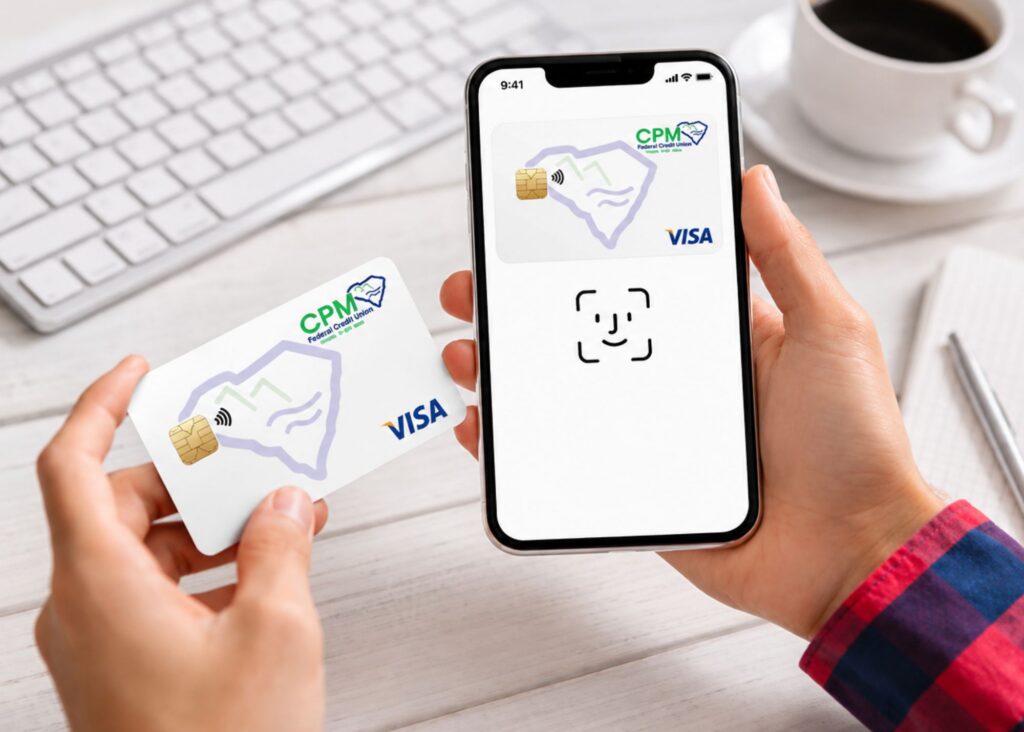
Add, Tap, and Go: Put Your New Card in Your Digital Wallet
Your credit card can do more than hang out in your physical wallet. Add it to the digital wallet on your eligible phone or smartwatch for easy payments in stores, in apps, and online.
Setup takes just a few minutes. Find your wallet below to get started!
Why use a digital wallet?
- Check out with less fuss. At participating stores, confirm it’s you and hold your device near the contactless reader.
- Shop your way. Pay at participating stores, in supported apps, and on eligible websites.
- Protect your card information. Digital wallets use device security features like a passcode, fingerprint, or facial recognition. Merchants typically receive a device-specific account number instead of your physical card number.
- Keep your card handy. Your eligible phone or watch may be all you need. Set your new card as the default payment method for added convenience.
Before starting, grab your card, update your device, and have your passcode and preferred identity verification method handy.
How to add your card to Apple Pay
On a compatible iPhone:
- Open Wallet and tap Add Card (+).
- Select Debit or Credit Card, then Continue.
- Follow the prompts to capture your card information or enter it manually.
- Review your information and complete any requested verification.
Once approved, your card will appear in Apple Wallet. To pay in stores, choose your card, confirm it’s you with Face ID, Touch ID, or your passcode, and hold your device near the contactless reader.
Adding it to Apple Watch? On your paired iPhone, open Watch → My Watch → Wallet & Apple Pay → Add Card. You may need to add your card separately, even if it’s already on your phone.
How to add your card to Google Wallet
On a compatible Android phone:
- Open Google Wallet and tap (+) to Add to Wallet.
- Choose the option to add a Payment Card, then choose new credit or debit card.
- Scan your card, tap it to your device if offered, or enter the details manually.
- Tap Save and continue, accept the issuer’s terms, and complete any requested verification.
To pay in stores, make sure NFC and contactless payments are turned on. Unlock your phone and hold it near the reader, confirming your identity if prompted.
How to add your card to Samsung Wallet
On a compatible Samsung Galaxy phone:
- Open Samsung Wallet → All → Payment cards.
- Tap Add credit or debit card, or tap (+) first if you already have a card saved.
- Allow camera access to scan your card, or select Add card manually.
- Follow the prompts, review the terms, and complete any requested verification.
At checkout, open Samsung Wallet, choose your card, confirm it’s you, and hold your phone near the contactless reader.
A few quick tips
- Look for the contactless payment symbol at checkout.
- Make your new card the default if you have multiple cards saved.
- You may need to add your card separately to your smartwatch.
- Having trouble? Check that your name, billing address, expiration date, and security code match your account records.
- For help, call the trusted number on the back of your card or contact your issuer through your banking app.
Availability and features vary by device, card, issuer, merchant, and region.
Ready to make checkout easier?
From coffee runs to holiday shopping, your card can be ready on the device you already carry. Add it today, look for the contactless symbol, and tap your way through checkout!